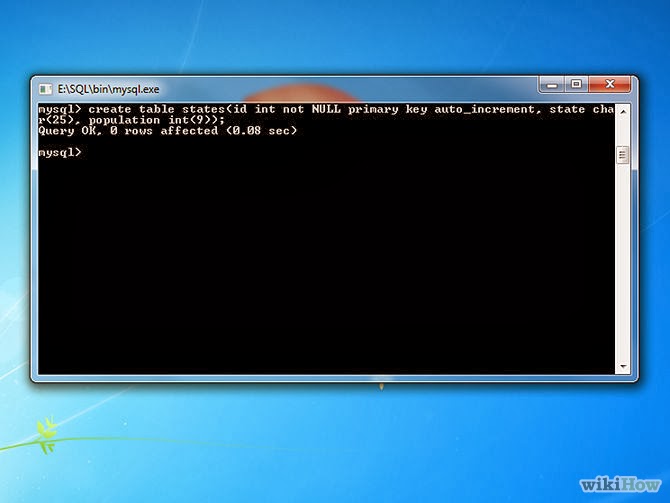
Create a database on the sql server.
mysql> create database
[databasename];
List all databases on the sql server.
mysql> show databases;
Switch to a database.
mysql> use [db name];
To see all the tables in the db.
mysql> show tables;
To see database's field formats.
mysql> describe [table name];
To delete a db.
mysql> drop database [database
name];
To delete a table.
mysql> drop table [table name];
Show all data in a table.
mysql> SELECT * FROM [table
name];
Returns the columns and column information pertaining to the designated table.
mysql> show columns from [table
name];
Show certain selected rows with the value "whatever".
mysql> SELECT * FROM [table name]
WHERE [field name] = "whatever";
Show all records containing the name "Bob" AND the phone number '3444444'.
mysql> SELECT * FROM [table name]
WHERE name = "Bob" AND phone_number = '3444444';
Show all records not containing the name "Bob" AND the phone number '3444444' order by the phone_number field.
mysql> SELECT * FROM [table name]
WHERE name != "Bob" AND phone_number = '3444444' order by
phone_number;
Show all records starting with the letters 'bob' AND the phone number '3444444'.
mysql> SELECT * FROM [table name]
WHERE name like "Bob%" AND phone_number = '3444444';
Show all records starting with the letters 'bob' AND the phone number '3444444' limit to records 1 through 5.
mysql> SELECT * FROM [table name]
WHERE name like "Bob%" AND phone_number = '3444444' limit 1,5;
Use a regular expression to find records. Use "REGEXP BINARY" to force case-sensitivity. This finds any record beginning with a.
mysql> SELECT * FROM [table name]
WHERE rec RLIKE "^a";
Show unique records.
mysql> SELECT DISTINCT [column
name] FROM [table name];
Show selected records sorted in an ascending (asc) or descending (desc).
mysql> SELECT [col1],[col2] FROM
[table name] ORDER BY [col2] DESC;
Return number of rows.
mysql> SELECT COUNT(*) FROM
[table name];
Sum column.
mysql> SELECT SUM(*) FROM [table
name];
Join tables on common columns.
mysql> select
lookup.illustrationid, lookup.personid,person.birthday from lookup left join
person on lookup.personid=person.personid=statement to join birthday in person
table with primary illustration id;
Create a new user. Login as root. Switch to the MySQL db. Make the user. Update privs.
# mysql -u root -p mysql> use
mysql; mysql> INSERT INTO user (Host,User,Password)
VALUES('%','username',PASSWORD('password')); mysql> flush privileges;
Change user’s password from unix shell.
# [mysql dir]/bin/mysqladmin -u
username -h hostname.blah.org -p password 'new-password'
Change user’s password from MySQL prompt. Login as root. Set the password. Update privs.
# mysql -u root -p mysql> SET
PASSWORD FOR 'user'@'hostname' = PASSWORD('passwordhere'); mysql> flush
privileges;
Recover a MySQL root password. Stop the MySQL server process. Start again with no grant tables. Login to MySQL as root. Set new password. Exit MySQL and restart MySQL server.
# /etc/init.d/mysql stop #
mysqld_safe --skip-grant-tables & # mysql -u root mysql> use mysql;
mysql> update user set password=PASSWORD("newrootpassword") where
User='root'; mysql> flush privileges; mysql> quit # /etc/init.d/mysql
stop # /etc/init.d/mysql start
Delete a column.
mysql> alter table [table name]
drop column [column name];
Add a new column to db.
mysql> alter table [table name]
add column [new column name] varchar (20);
Change column name.
mysql> alter table [table name]
change [old column name] [new column name] varchar (50);
Make a unique column so you get no dupes.
mysql> alter table [table name]
add unique ([column name]);
Make a column bigger.
mysql> alter table [table name]
modify [column name] VARCHAR(3);
Delete unique from table.
mysql> alter table [table name]
drop index [colmn name];
Load a CSV file into a table.
mysql> LOAD DATA INFILE
'/tmp/filename.csv' replace INTO TABLE [table name] FIELDS TERMINATED BY ','
LINES TERMINATED BY '\n' (field1,field2,field3);
Dump all databases for backup. Backup file is sql commands to recreate all db's.
# [mysql dir]/bin/mysqldump -u root
-ppassword --opt >/tmp/alldatabases.sql
Dump one database for backup.
# [mysql dir]/bin/mysqldump -u
username -ppassword --databases databasename >/tmp/databasename.sql
Dump a table from a database.
# [mysql dir]/bin/mysqldump -c -u
username -ppassword databasename tablename > /tmp/databasename.tablename.sql
Restore database (or database table) from backup.
# [mysql dir]/bin/mysql -u username
-ppassword databasename < /tmp/databasename.sql
Create Table Example 1.
mysql> CREATE TABLE [table name]
(firstname VARCHAR(20), middleinitial VARCHAR(3), lastname VARCHAR(35),suffix
VARCHAR(3),officeid VARCHAR(10),userid VARCHAR(15),username VARCHAR(8),email
VARCHAR(35),phone VARCHAR(25), groups VARCHAR(15),datestamp DATE,timestamp
time,pgpemail VARCHAR(255));
Create Table Example 2.
mysql> create table [table name]
(personid int(50) not null auto_increment primary key,firstname varchar(35),middlename
varchar(50),lastnamevarchar(50) default 'bato');